【VBA入門】Excelを自動化して業務を効率化!VBA(Visual Basic for Applications)は、Microsoft ExcelなどのOffice製品に組み込まれているプログラミング言語です。Excelの作業を自動化したり、繰り返し処理を行ったりといった便利な機能を追加できます。
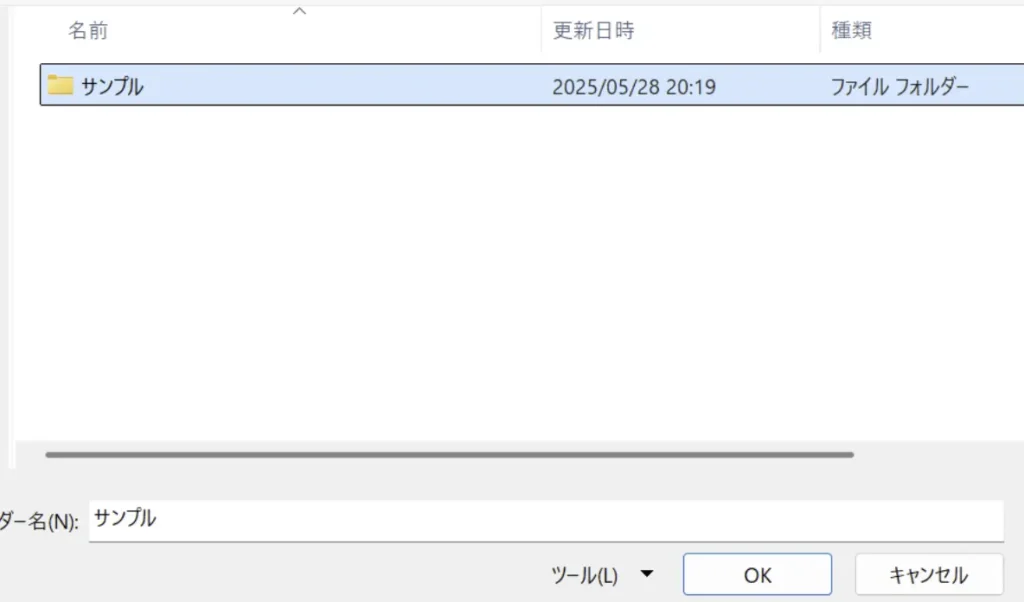
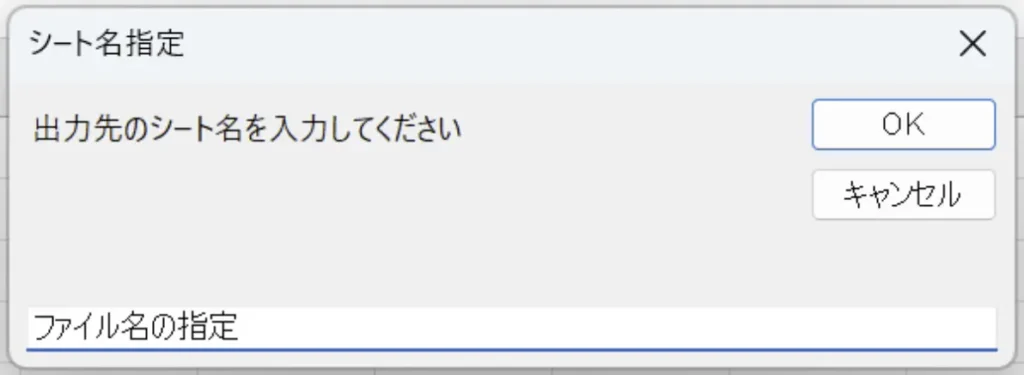
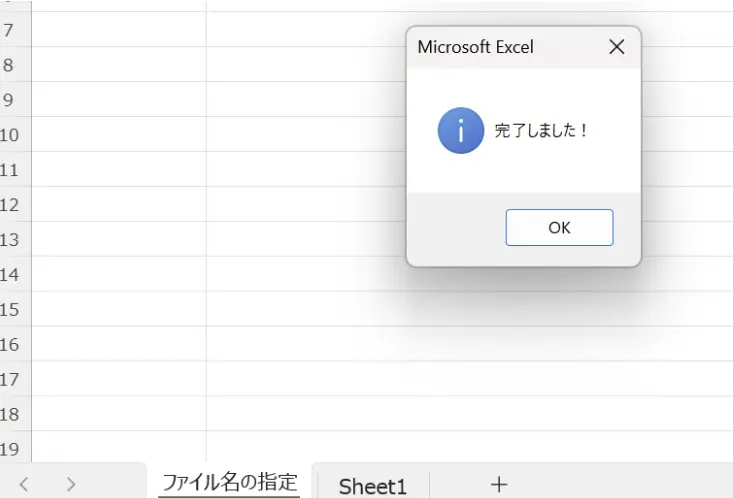
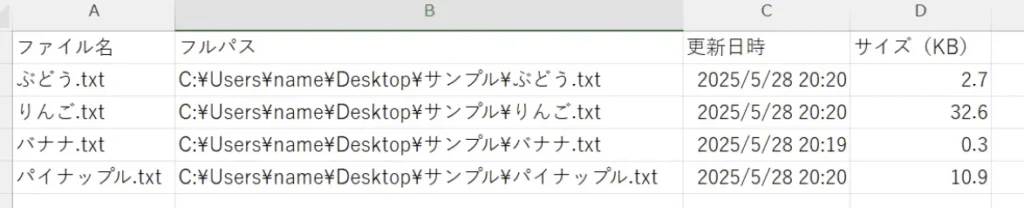
Sub ListFilesWithDetails() Dim folderPath As String Dim ws As Worksheet Dim i As Long Dim sheetName As String Dim ans As VbMsgBoxResult' フォルダ選択ダイアログ With Application.FileDialog(msoFileDialogFolderPicker).Title ="フォルダを選択してください" If .Show <>-1 Then Exit Sub folderPath =.SelectedItems(1) End With' シート名の入力 sheetName =InputBox("出力先のシート名を入力してください","シート名指定","ファイル一覧") If sheetName ="" Then Exit Sub' すでにシートが存在するか確認 On Error Resume Next Set ws =Worksheets(sheetName) On Error GoTo 0 If Not ws Is Nothing Then ans =MsgBox("シート「"& sheetName &"」はすでに存在します。上書きしますか?", vbYesNo + vbExclamation) If ans = vbNo Then Exit Sub Application.DisplayAlerts =False ws.Delete Application.DisplayAlerts =True End If' 新しいシート作成 Set ws = Worksheets.Add ws.Name = sheetName' ヘッダー ws.Cells(1,1).Value ="ファイル名" ws.Cells(1,2).Value ="フルパス" ws.Cells(1,3).Value ="更新日時" ws.Cells(1,4).Value ="サイズ(KB)" i =2' ファイル一覧取得 Call GetFilesRecursive(folderPath, ws, i)' 表の整形 ws.Columns("A:D").AutoFit MsgBox "完了しました!", vbInformationEnd SubSub GetFilesRecursive(ByVal folderPath As String, ByRef ws As Worksheet, ByRef rowIndex As Long) Dim fso As Object, folder As Object, file As Object, subFolders As Object, subF As Object Set fso =CreateObject("Scripting.FileSystemObject") Set folder = fso.GetFolder(folderPath)' ファイル一覧取得 For Each file In folder.Files ws.Cells(rowIndex,1).Value = file.Name ws.Cells(rowIndex,2).Value = file.Path ws.Cells(rowIndex,3).Value = file.DateLastModified ws.Cells(rowIndex,4).Value =Round(file.Size /1024,1) rowIndex = rowIndex +1 Next' サブフォルダも再帰的に処理 Set subFolders = folder.SubFolders For Each subF In subFolders GetFilesRecursive subF.Path, ws, rowIndex NextEnd Sub